Quizzes & Exams
How to build a quiz, and what taking one looks like.
Quizzes & Exams
Media Gallery user guide
In short
Any photo or video can carry a set of questions — its quiz. An album can also have one exam, which draws at random from every item's questions at once. Members of the family get a saved score each time they take one. On a public album, anyone else can take the same questions as practice without an account.
1. Building a quiz
Open an album, click Controls, then Quizzes. Only the person who created the album can do this.
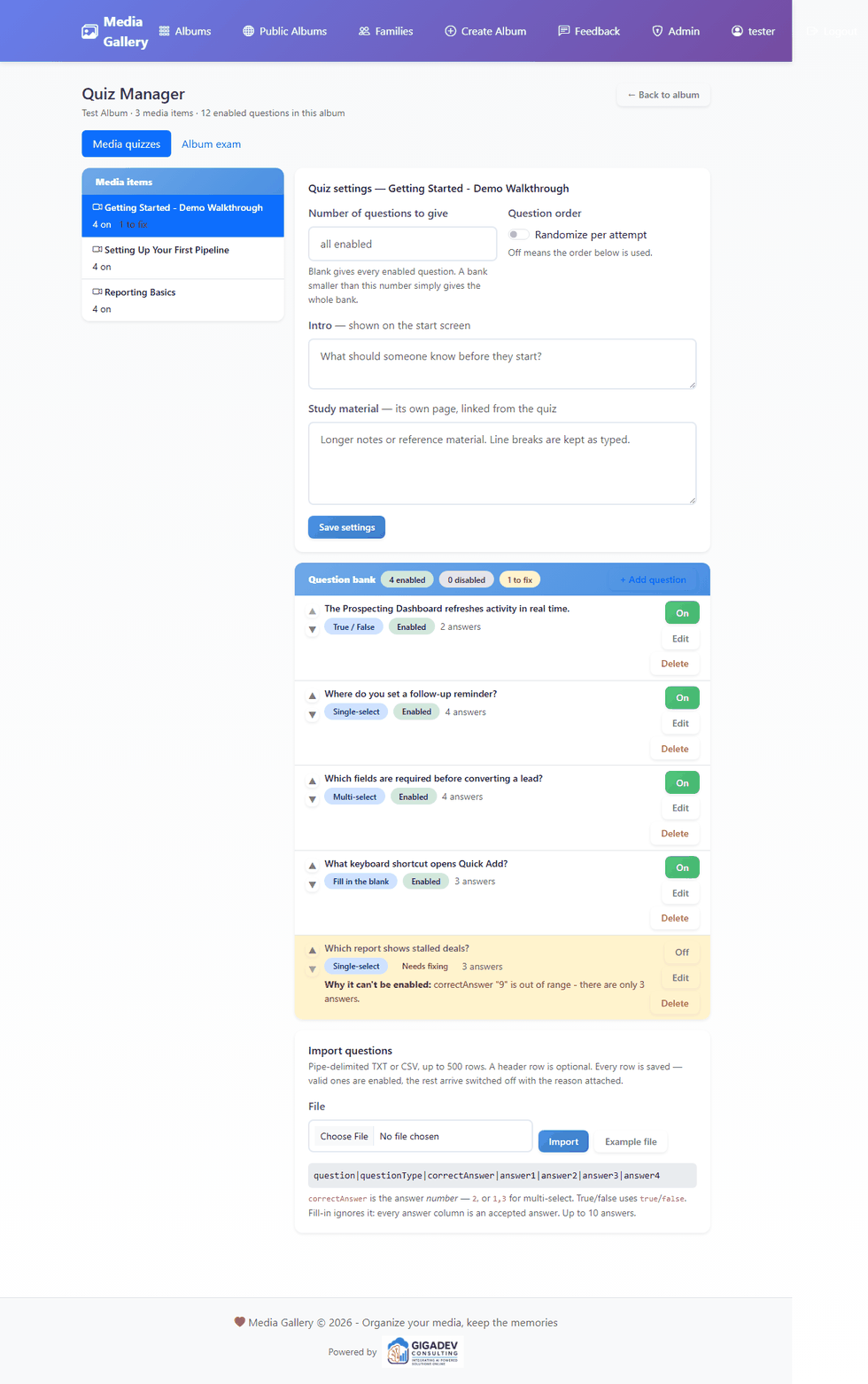
Pick a photo or video on the left, and everything to the right belongs to that item. The counts under each name tell you where the work is: how many questions are switched on, how many are off, and how many still need fixing.
The two settings that change how it's given
- Number of questions to give. Leave it blank and everyone gets every enabled question. Set it to 5 against a bank of 20 and each person gets a different five. If the bank is smaller than the number you ask for, everyone simply gets the whole bank.
- Randomize per attempt. Shuffles the order. With it off, the order is the one you set with the up and down arrows.
Writing a question
Add question opens the editor. Choose a type and the answer area changes to match it.
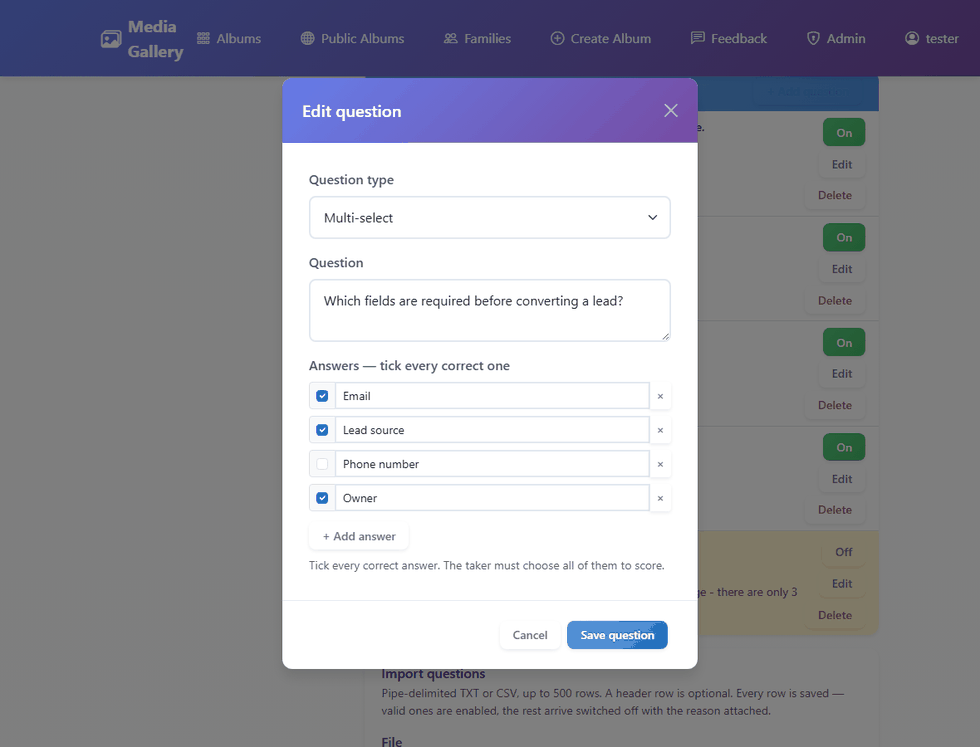
Tick the answers that are correct, using the boxes on the left of each row. There's no separate “correct answer” field to keep in step — the ticks are the answer key.
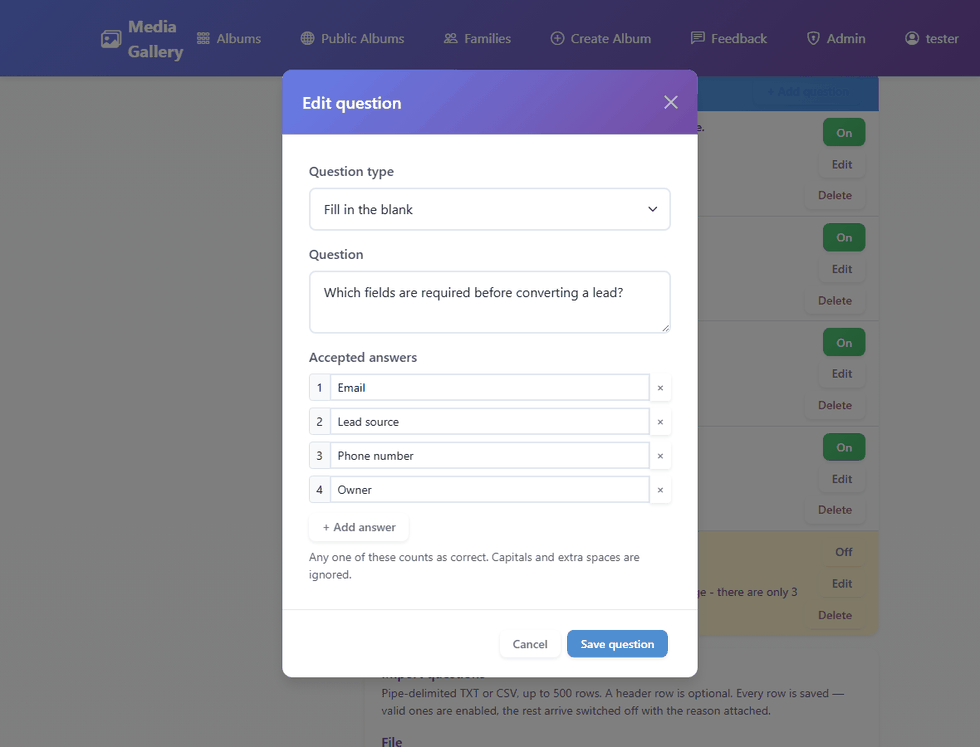
Switch the type to Fill in the blank and every row becomes an answer you'll accept. Someone only has to match one of them, and capitals and extra spaces are ignored.
2. Importing questions from a file
For anything more than a few questions, write them in a file and import it. The easiest way is the Template (CSV) on the import panel: open it in Excel or Google Sheets, fill in a row per question, save it as CSV, and import it. The instructions are inside the file. A pipe-separated text file works too — Example (pipes) shows that shape.
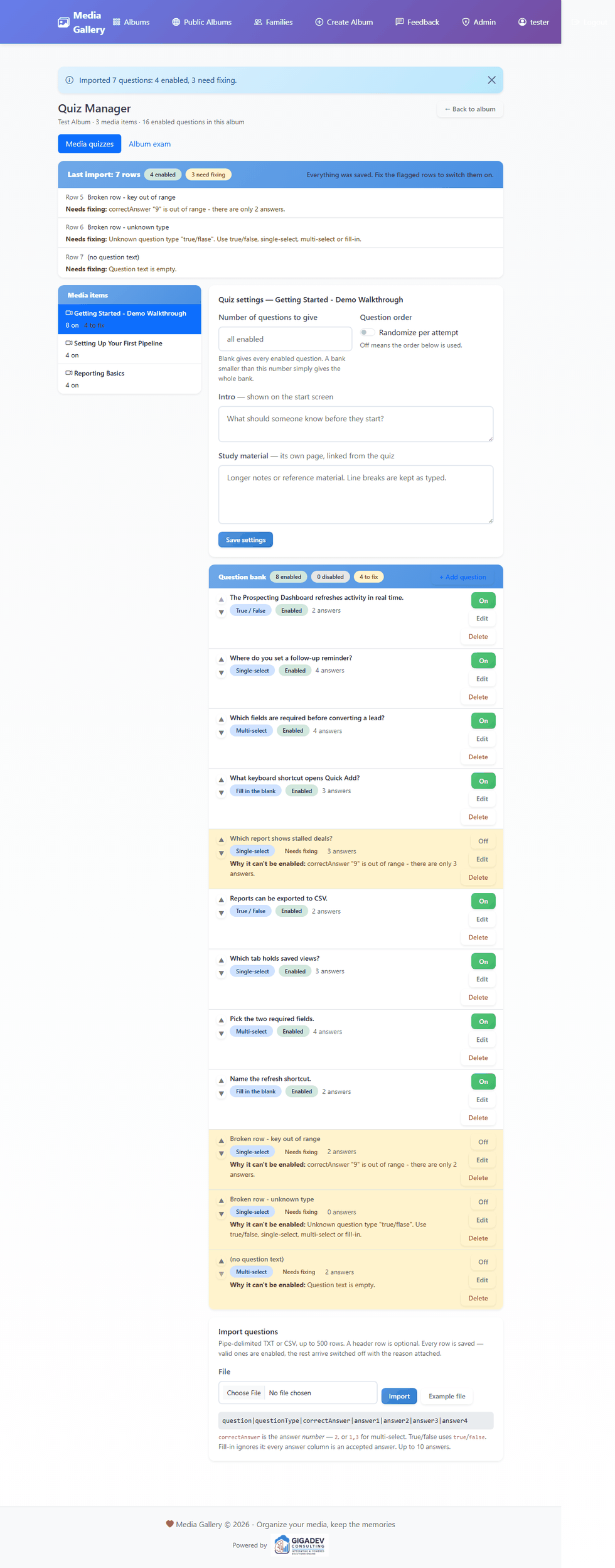
Nothing is rejected at the door. Every row in the file is saved. Rows that are complete arrive switched on; rows with a problem arrive switched off with the reason attached, and you fix them here rather than editing the file and starting again.
A question that needs fixing can't be switched on until it's fixed — clicking the switch tells you what's wrong. Open it with Edit, correct it, save, and the flag clears.
Check before you import. Check file only shows the same report the import would produce, without saving anything — useful when a file came from somewhere you don't fully trust yet.
Read before they go live. The import panel's checkbox keeps the new questions switched off until you've looked at them; then Switch on all at the top of the bank turns them on in one go. Questions that need fixing stay off either way. It's ticked by default, and it's the right setting for anything written by an AI.
Writing the questions with an AI
Give an AI the transcript, notes or runsheet for a video or recording and ask it for
questions in the template's format — the columns above, one question per line,
correctAnswer as a number. Save what it gives you as a .csv
or .txt file and import it. A file wrapped in a code fence, or with
curly quotes, still imports.
If you use Claude Code, the quiz-import skill does the
whole thing: it writes the file from your source document and then checks every row
against this site's own parser before handing it over, so what you import has
already been validated. You don't need the app's code — the check calls the
gallery.
To install it: download Skill for Claude Code below
(or from the import panel) and save it as
.claude/skills/quiz-import/SKILL.md inside any folder where you run
Claude Code — a folder with your transcripts in it is a fine choice. Then ask
Claude Code to make a quiz from a document, or type /quiz-import. The
file it hands you goes in your Downloads folder, ready to import here. (Inside the
app's own project, python -X utf8 check_quiz_import.py yourfile.csv
runs the same check from the command line.)
Generating them here, without leaving the site
This one is switched on family by family, because each generation costs the site money. If yours has it, a Generate from the attachment panel appears under the import form. If you don't see it, nothing is wrong — use the skill above instead, which does the same job on your own machine and is always available.
It needs two things: the item has to be the one the questions are about, and it has to have the transcript or notes attached — a PDF, a text file or a CSV, added on the item's own Edit panel. That document is what the questions are written from; the audio or video itself isn't read.
Choose how many questions you want and press Generate. It takes up to a minute, and the page waits. What comes back lands in the bank exactly as an imported file would — switched off, whatever the checkbox above says, because nobody should sit a quiz an AI wrote that a person hasn't read. Read them, fix anything flagged, then Switch on all.
Each family can generate 10 times a day and 60 times a month. The panel shows where you are against both, so running out is never a surprise. Attempts that fail still count — they cost the same call.
The questions are only as good as the document. A clean transcript gives good questions; a scanned page of slides gives poor ones. If a generation produces something odd, the fix is usually a better source document rather than another go.
3. Setting up the album exam
The Album exam tab sets up one exam covering the whole album.
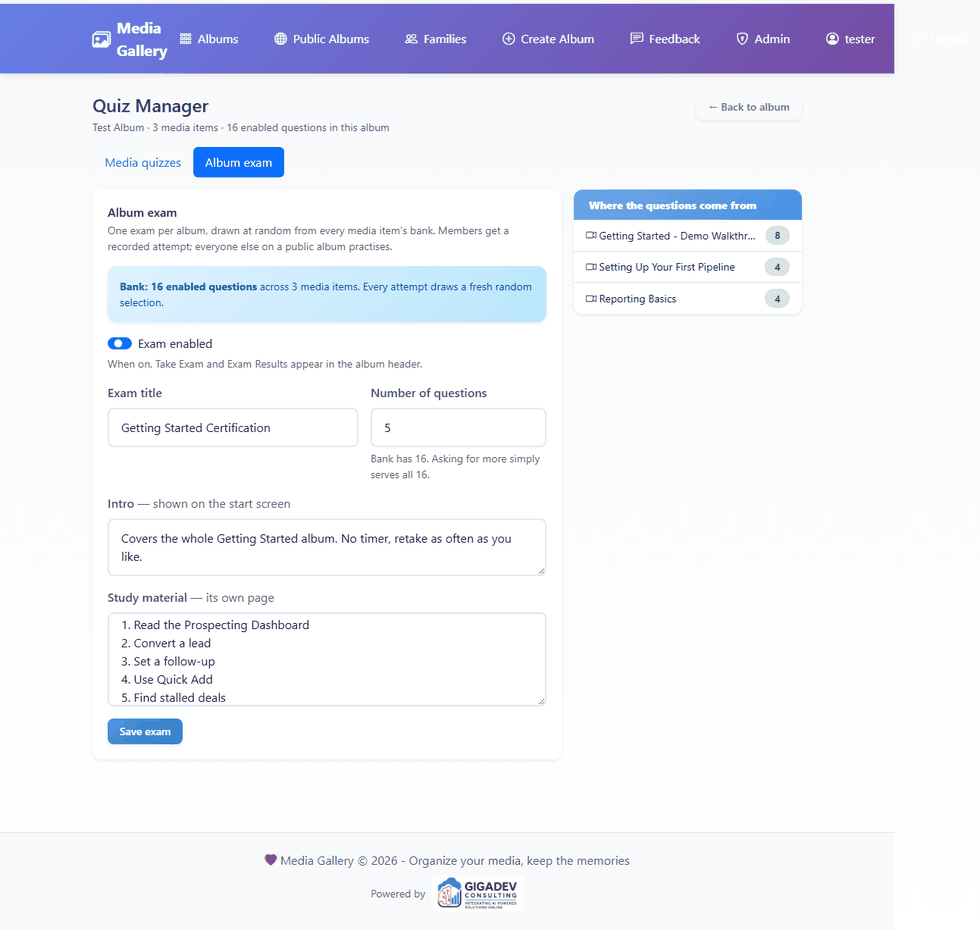
Its questions come from every media item's bank at once, and each attempt draws a fresh random selection. The panel on the right shows which items are contributing and how many questions each has.
Switch it on and Take Exam appears in the album header. If the album has no questions yet, nothing appears — you'll be told when you save.
4. Taking a quiz
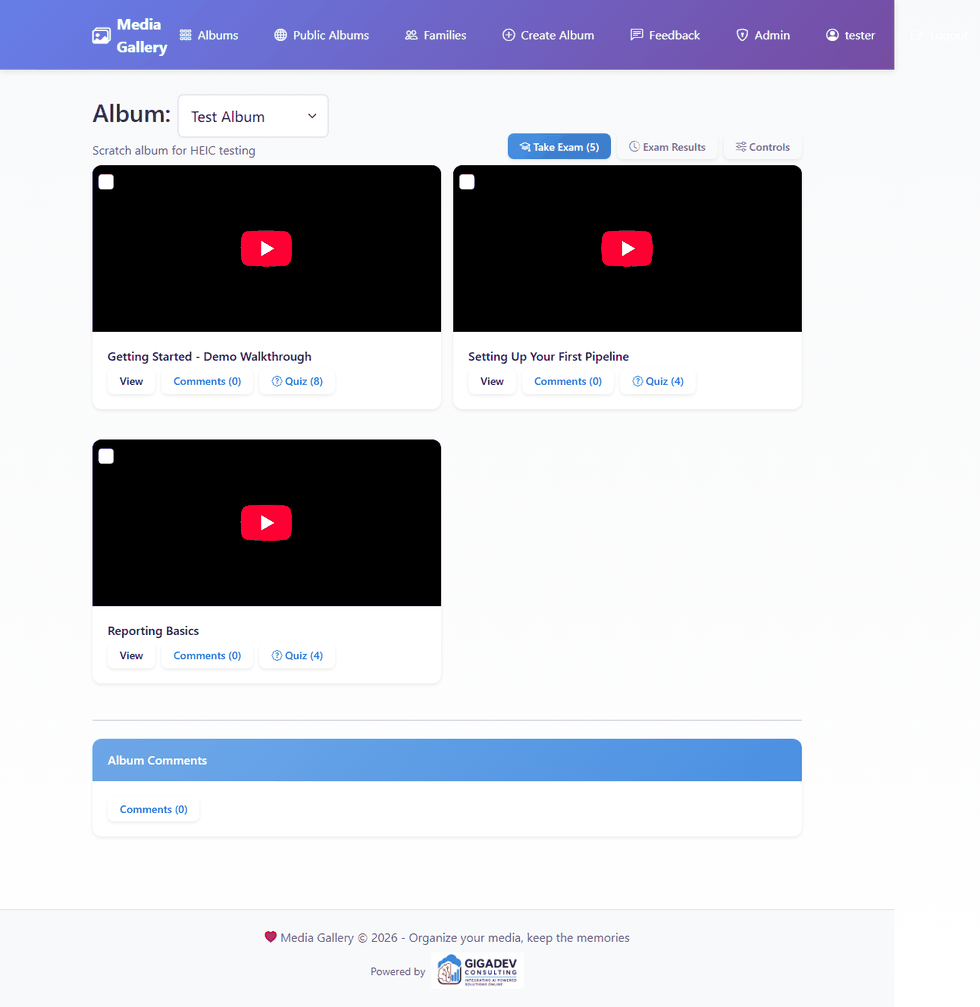
A Quiz button appears on a card once that item has questions ready. The number on it is how many you'll be asked, not how many exist. The exam sits in the header instead, because it isn't about any single item.
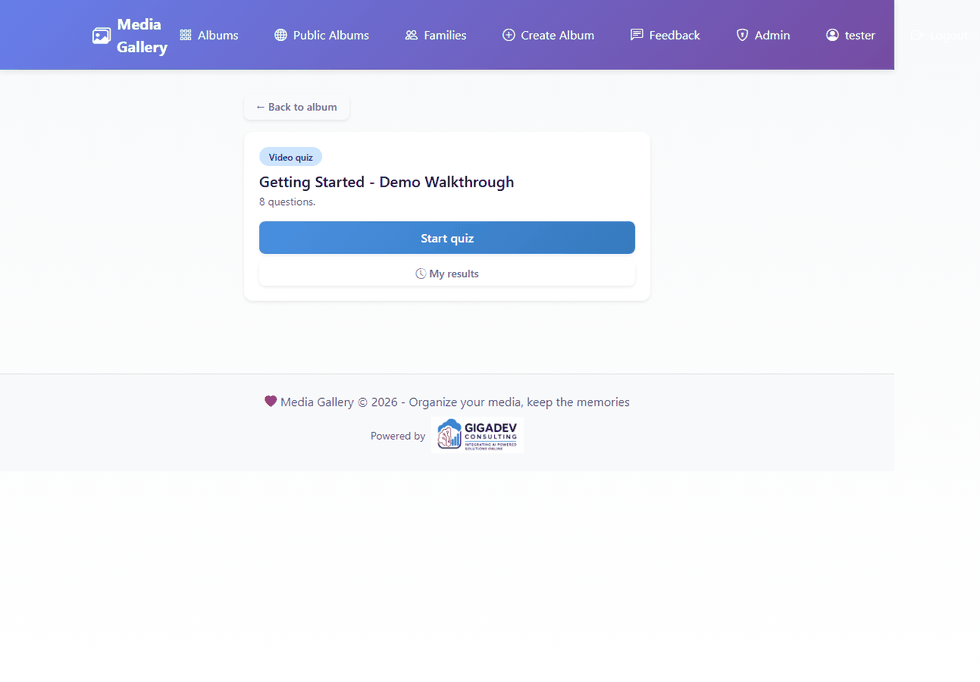
The start screen shows what you're in for and any notes the album owner left. Once you press Start, your questions are settled — reloading the page brings back the same ones rather than a new set.
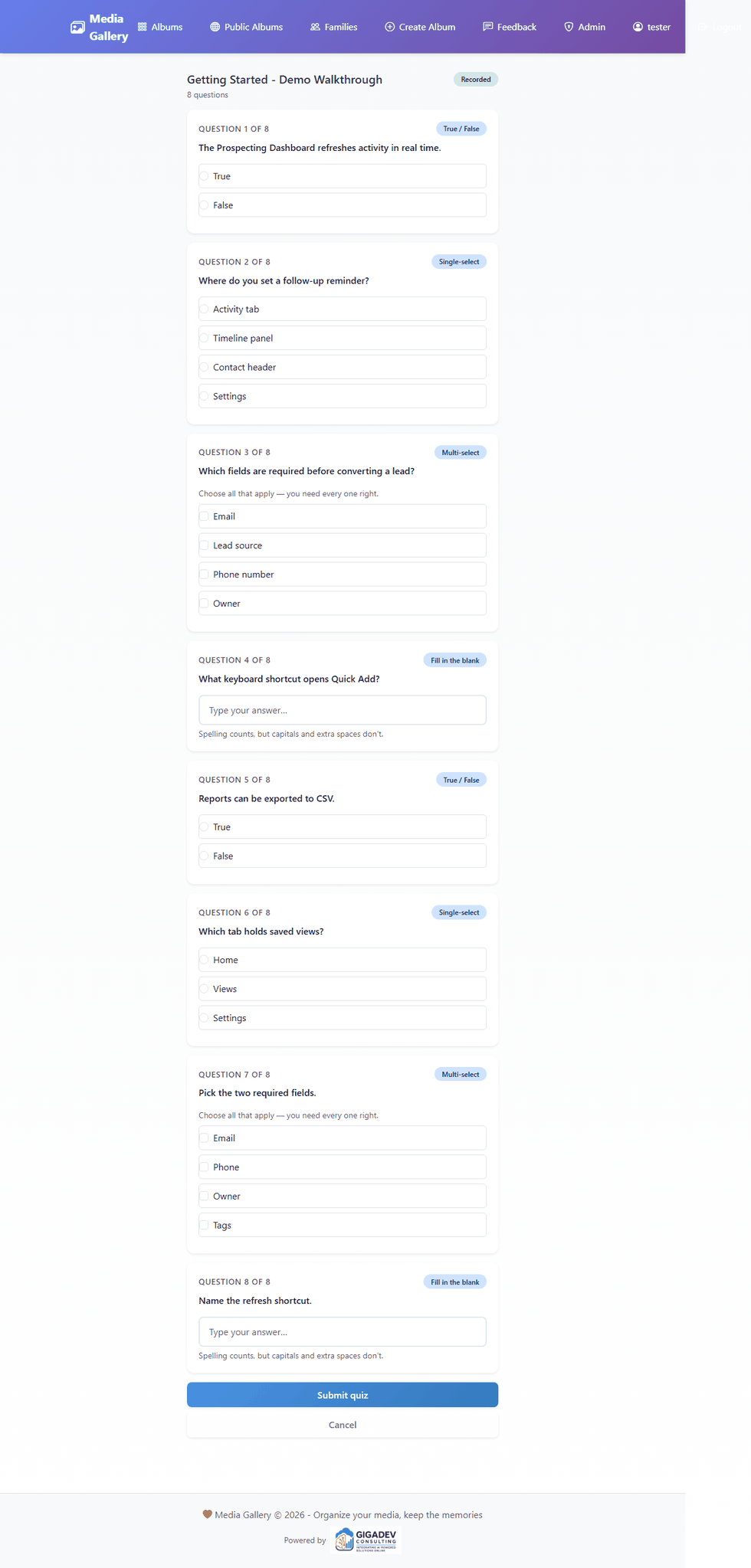
Answer what you can; leaving something blank just marks it wrong. Then submit.
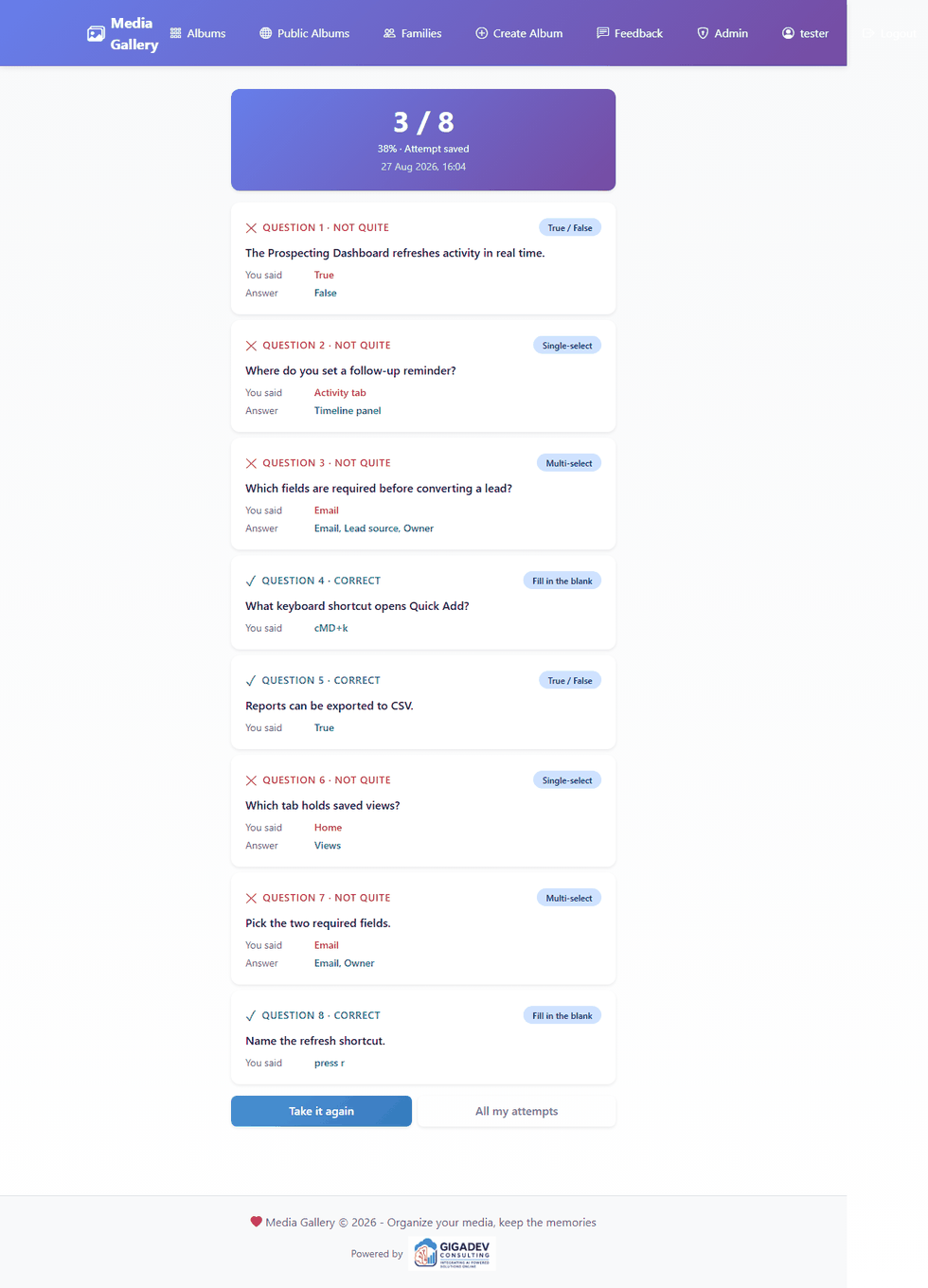
You get your score, and for every question: what you answered, whether it was right, and the correct answer if it wasn't.
Multi-select questions are all–or–nothing: three right out of four scores zero for that question.
5. Results
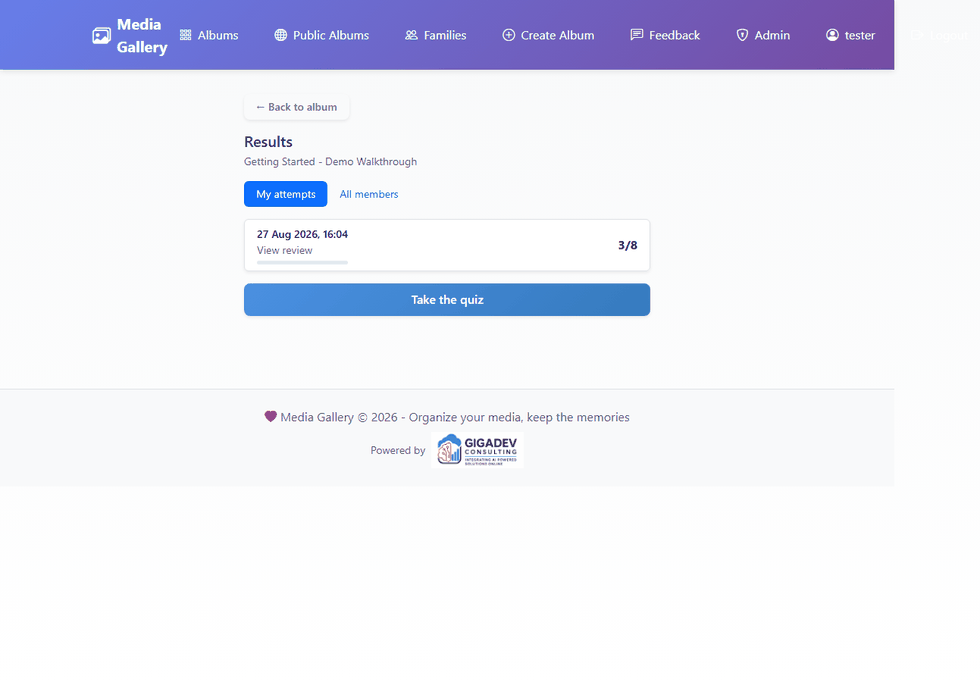
Every attempt you've submitted is listed, newest first, and each one opens its own review. Take a quiz ten times and you'll see all ten.
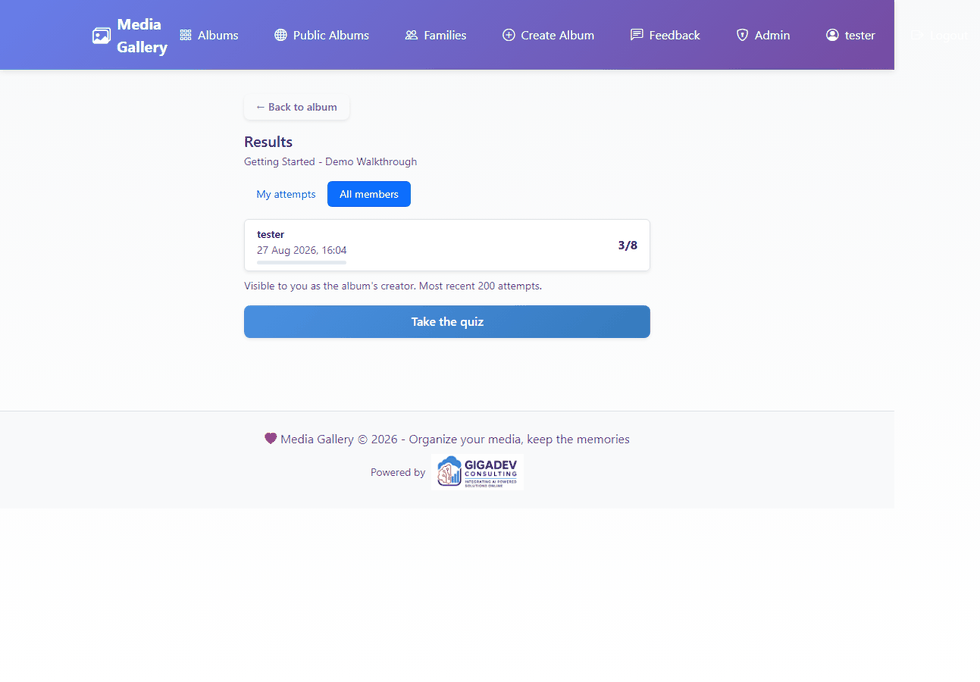
If you created the album, a second tab lists everyone's attempts.
Results keep a copy of each question as it was asked. If you later reword a question or delete it, old results still read correctly.
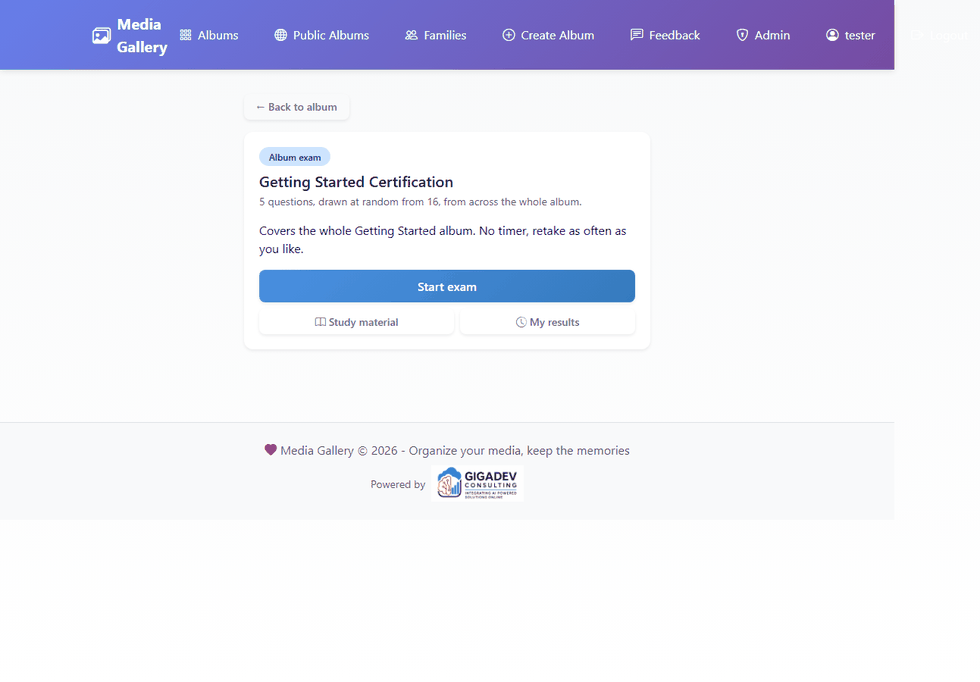
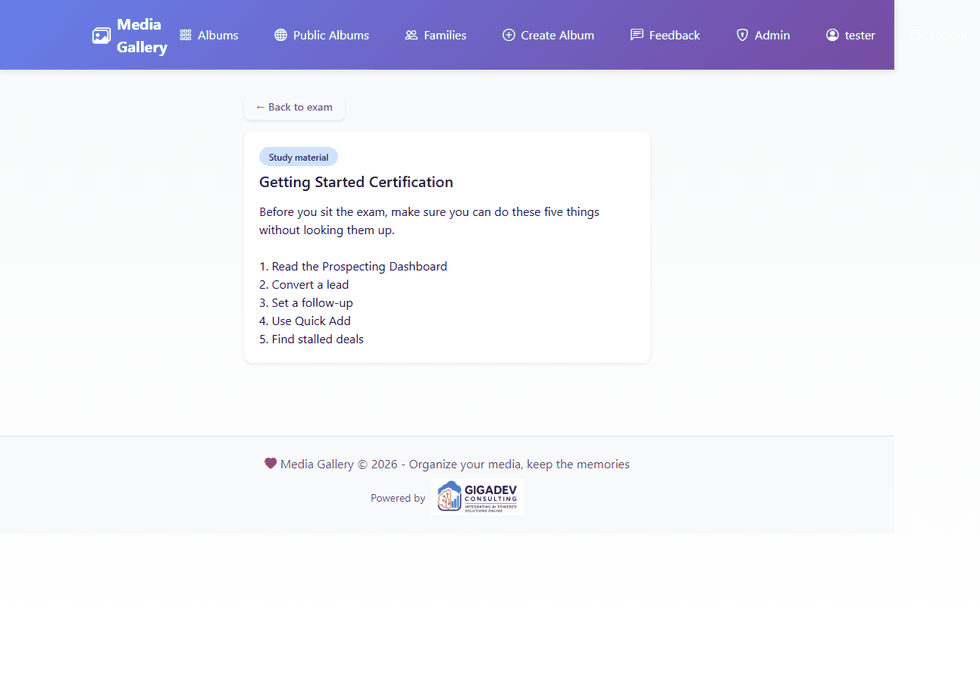
Where an album owner has written study material, it gets its own page linked from the quiz and from your results.
6. Visitors and practice mode
On a public album, someone who isn't signed in — or is signed in but isn't a member of that family — can still take the questions.
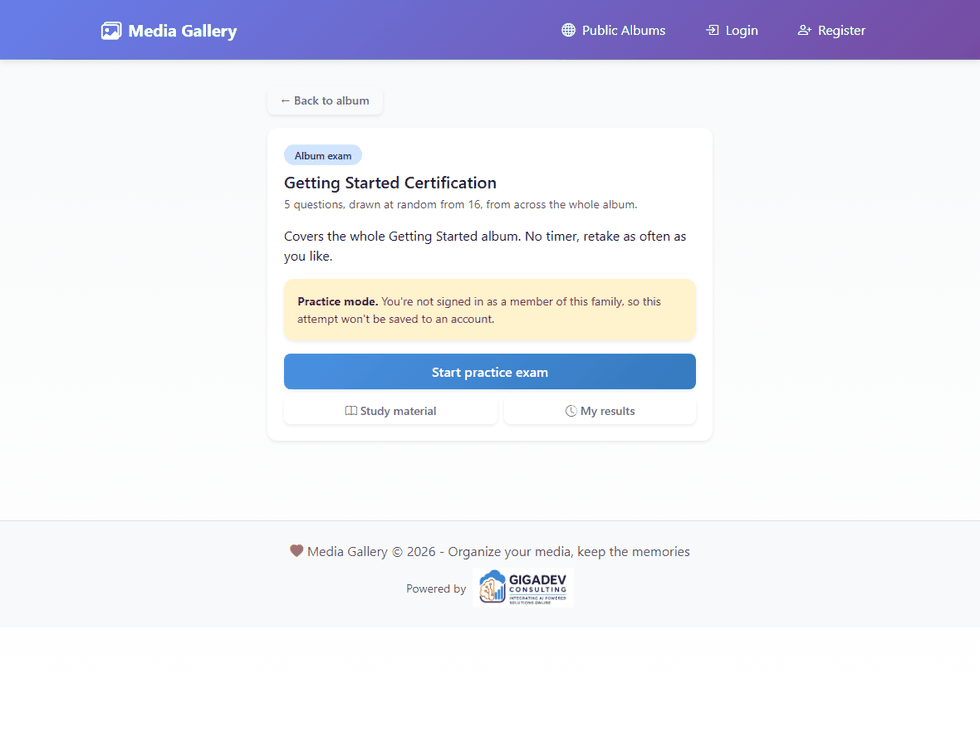
It's marked as practice throughout, and the result isn't saved to any account.
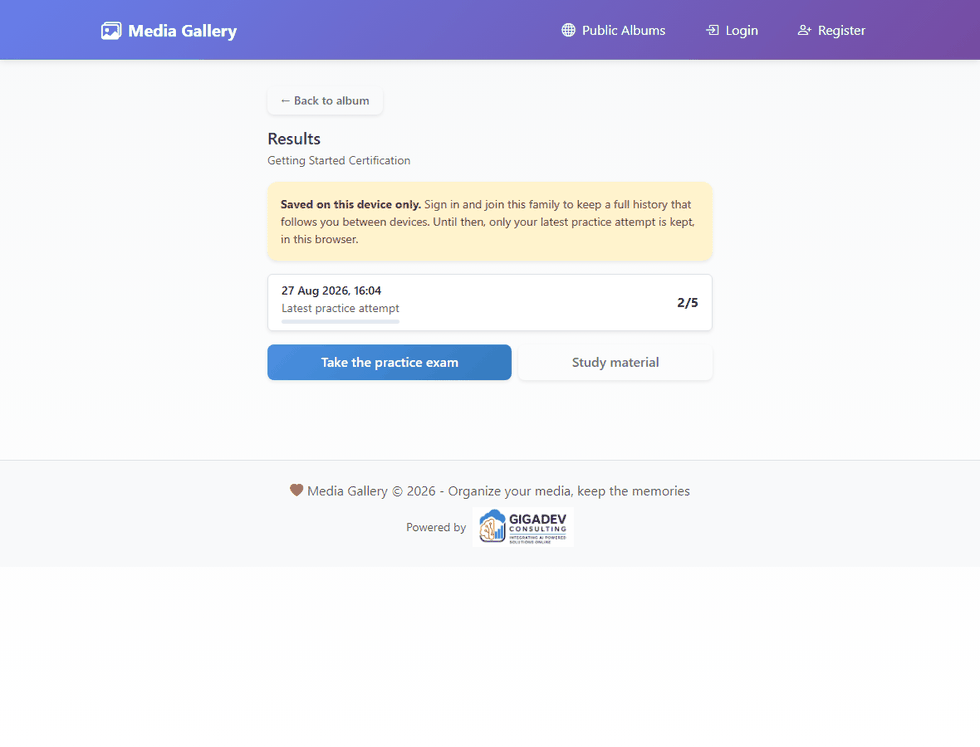
Their most recent result is kept in that browser only. It's replaced each time they try again, it doesn't follow them to another device, and clearing their browser data loses it. The page says so rather than pretending otherwise.
Private albums don't offer any of this — only members can see them at all.
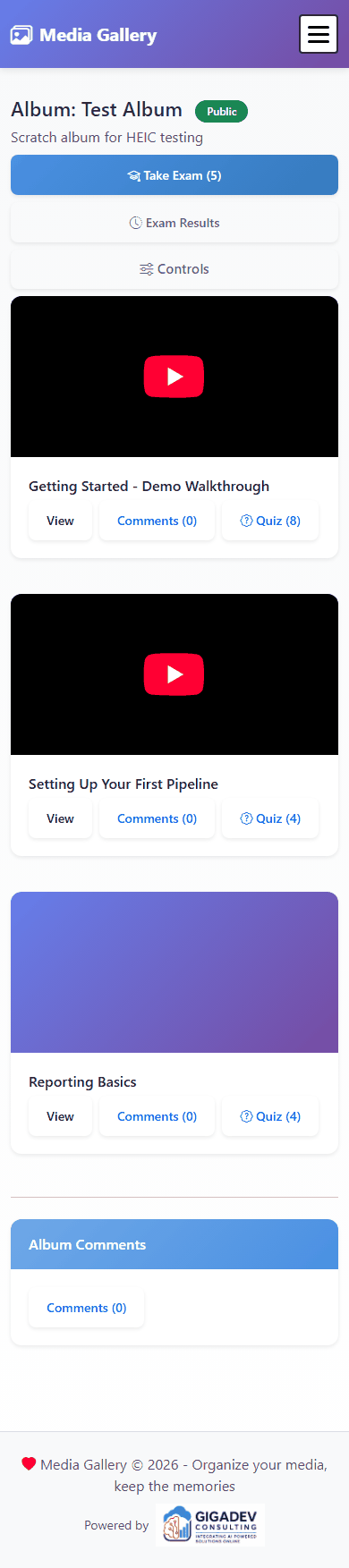
Everything works the same on a phone.
Question types & file format
| Type | Answers | How it's marked |
|---|---|---|
| True / False | Always these two | One is correct |
| Single-select | 2 to 10 | Exactly one is correct |
| Multi-select | 2 to 10 | All the correct ones must be chosen |
| Fill in the blank | 1 to 10 accepted answers | Any one matches; capitals and spacing ignored |
The import file
A .csv or .txt file, one question per line. Values are
separated by commas (a spreadsheet saved as CSV), by semicolons, or by the
| character — the file's first line decides which. A header row is
optional, lines starting with # are ignored, and any text encoding a
spreadsheet saves is fine. Up to 500 questions per file.
question|questionType|correctAnswer|answer1|answer2|answer3|answer4
"The sky is blue."|true/false|true
"Which planet is largest?"|single-select|2|Mars|Jupiter|Venus|Mercury
"Which are primary colours?"|multi-select|1,3|Red|Green|Blue|Purple
"Name a US state that borders Canada."|fill-in||Washington|Montana|Maine|Alaska
- correctAnswer is the answer number —
2for the second answer, or1,3to mark two of them. In a comma-separated file put that in quotes:"1,3". Excel does this for you. - True/false uses
trueorfalseinstead. - Fill-in ignores it entirely: every answer column is one you'll accept.
- Put a question in
"double quotes"if it needs to contain the separator character.